GolfPairings.com
User Tutorial: Creating Fair Groups, Setting Up Games, and Calculating Results
GolfPairings.com makes it easy to organize golf outings, tournaments or daily games, create fair teams, and calculate game results.
Enter the names and handicaps of your golfers just once. GolfPairings.com will generate the required foursomes and threesomes using one of two methods:
- Balanced by Handicap: Creates groups with total handicaps that are as equal as possible while minimizing the number of times the same two players play together more than once.
- Random: Creates groups without considering handicaps while still minimizing repeated pairings.
The website also provides tools for setting up golf games, entering scores, tracking results, calculating skins, and exporting groupings.
Getting Started
Step 1: Create an Account
- 1
Go to the GolfPairings.com login page.
- 2
Select Create an Account.
- 3
Follow the instructions to complete your registration.
Step 2: Sign In
Sign in using your email address and password.
Creating Rosters and Generating Groups
Navigate to the Foursomes page to create your golfer roster(s) and generate the groups for your outing, tournament, or daily games.
Step 1: Create a Roster
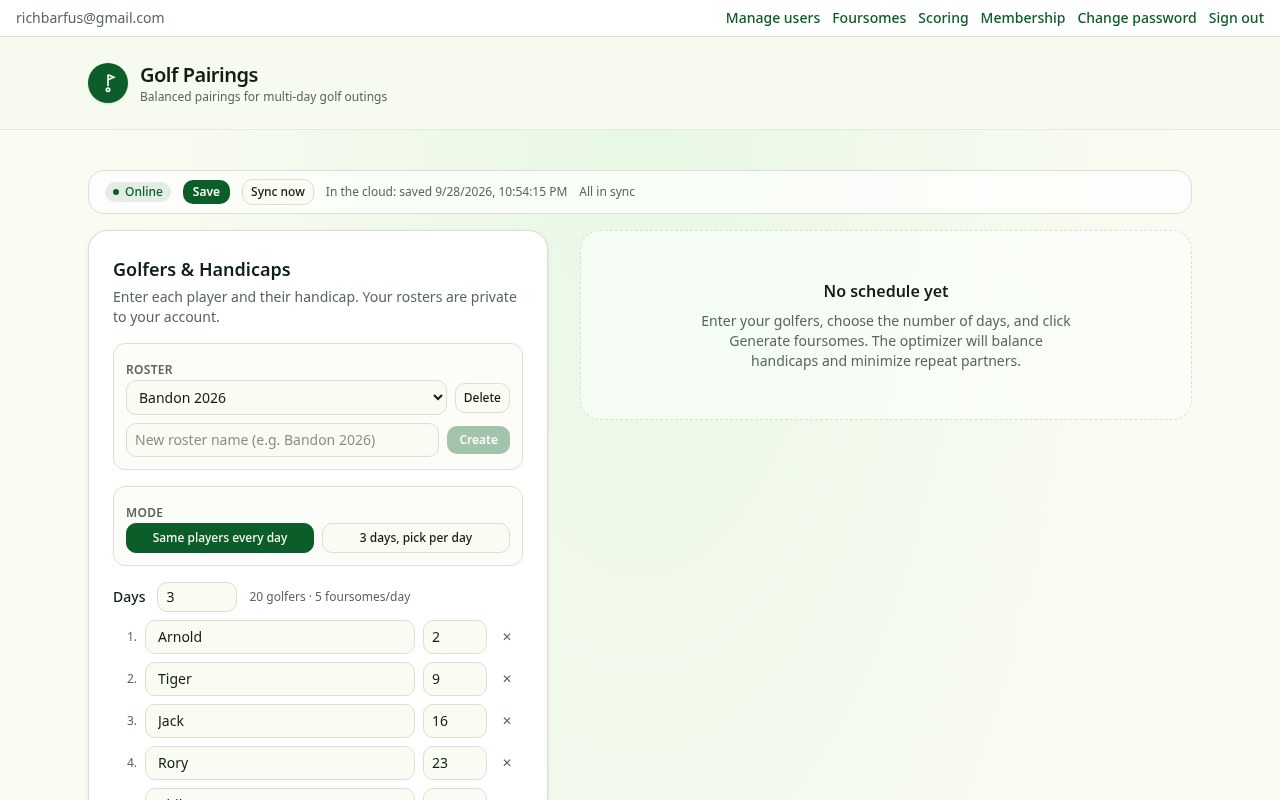
First, choose how you want to organize the players. Rosters can be created and saved for both options.
Option A: Same Players Every Day
Choose this option for a tournament or outing in which all golfers on the roster will play every day. You can specify the number of days for the event.
Option B: 3 Days, Pick Per Day
Choose this option when you have a larger roster of golfers but not everyone will play every day. You can enter all the golfers and select which players will participate on each of up to three days.
Next, create the roster:
- 1
Under Roster, enter a name for your roster.
- 2
Press Create.
- 3
Enter each golfer's name and handicap.
- 4
To add another golfer beyond the space provided, select + Add Golfer.
- 5
To remove a golfer, select the X next to that golfer's entry.
- 6
Use the Sort button to arrange the names for easier access.
You can create as many rosters as you need.
Step 2: Generate Groups and Teams
The process depends on which roster option you selected.
A. If You Selected “Same Players Every Day”
- 1
Select your preferred grouping method: Balanced by Handicap (the default) or Random.
- 2
Choose whether to generate groups for all tournament days or only selected days.
- 3
Generate the groups.
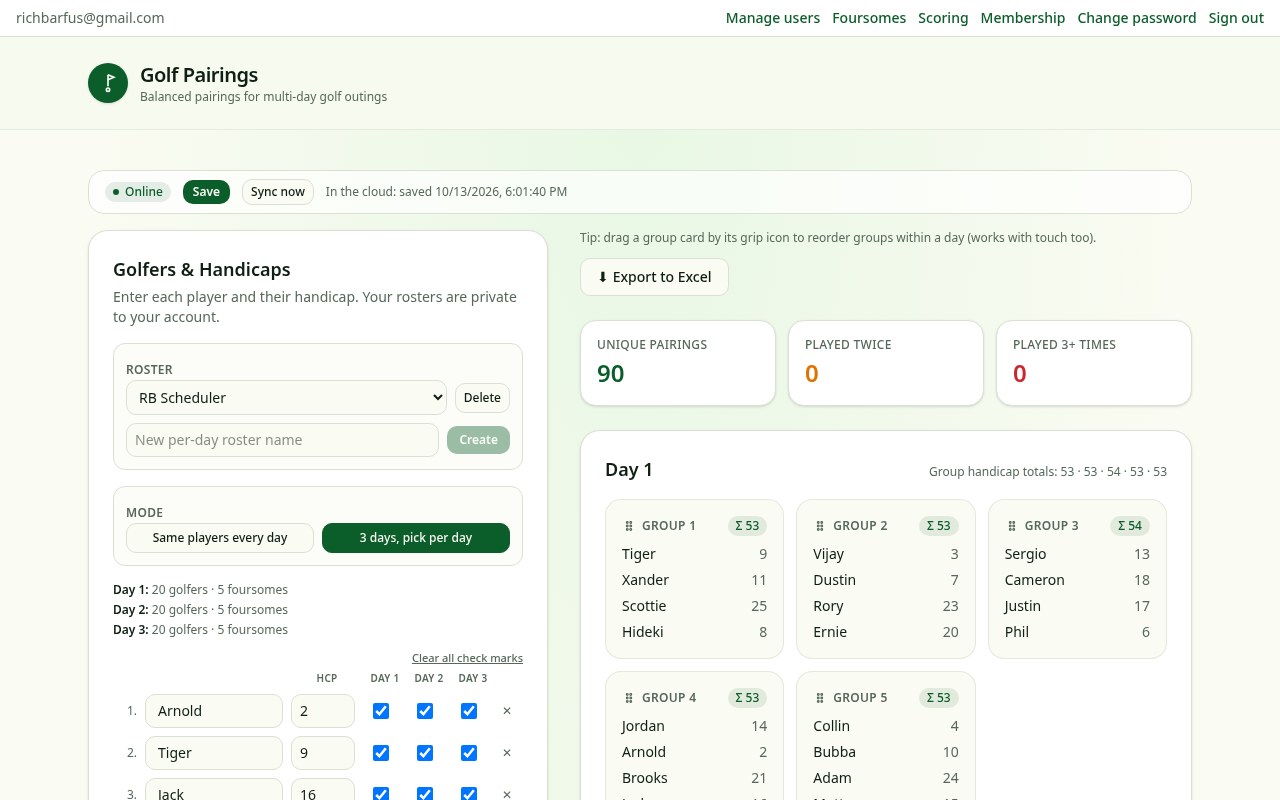
Days that are not selected will remain unchanged. The resulting groups will appear on the right side of the page. Each group will display its total handicap. When you select Balanced by Handicap, the total handicaps of the groups will be as close to equal as possible.
B. If You Selected “3 Days, Pick Per Day”
- 1
Use the boxes next to each golfer's name to indicate which days that golfer will play.
- 2
Select Balanced by Handicap or Random. Balanced by Handicap is the default.
- 3
Choose whether to generate groups for all three days or only selected days.
- 4
Generate the groups.
Days that are not selected will remain unchanged. The groups will appear on the right side of the page, along with each group's total handicap. With balanced grouping, the total handicaps will be as close to equal as possible.
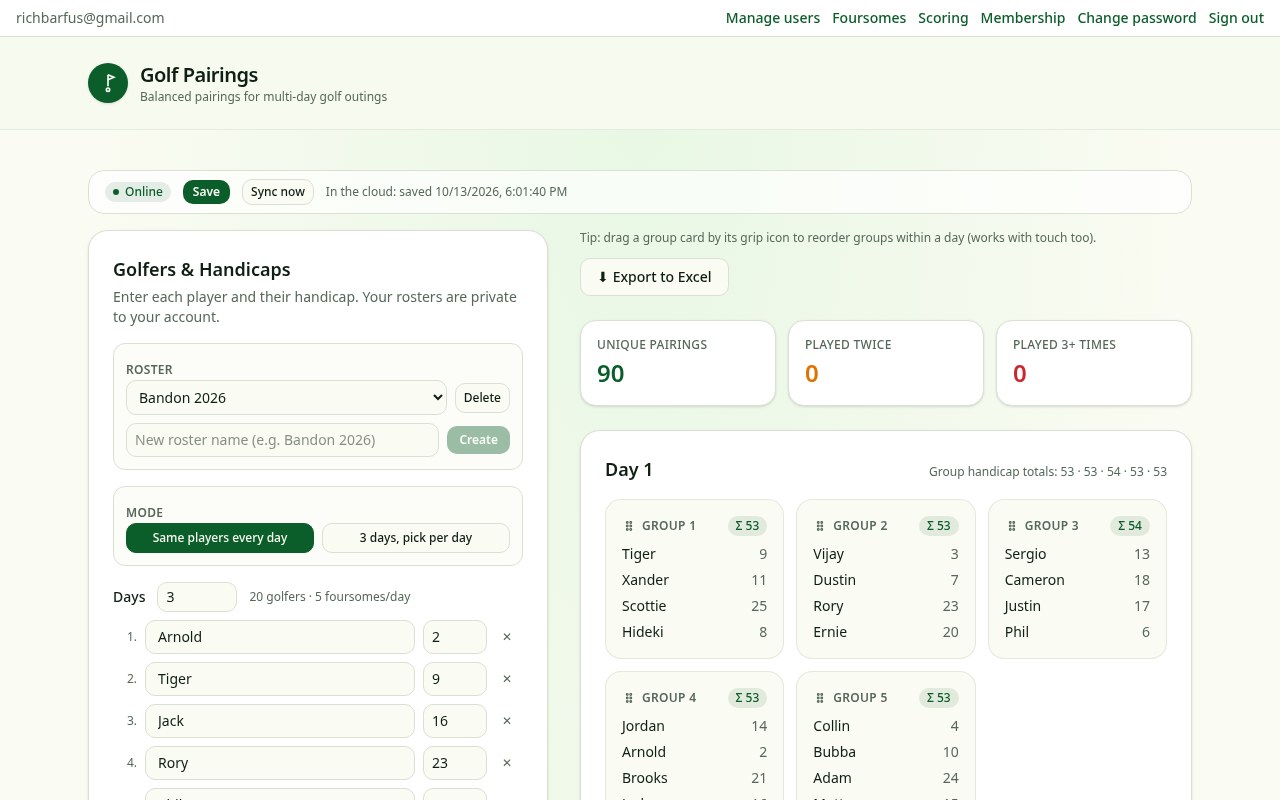
Step 3: Save and Reproduce a Grouping
Each generated version includes a version number and a Copy Version button.
To save a version for future use:
- 1
Select Copy Version.
- 2
Paste the copied version number into a document, email, or other convenient location.
- 3
Keep the number for future reference.
You can use the Reproduce button to recreate that version later. This is useful when you need to recover a previously generated set of groups.
Step 4: Use the Additional Features
GolfPairings.com includes several convenient features:
- Drag and Drop: Rearrange groups within a day to accommodate players who need to appear at a specific position in the schedule.
- Export to Excel: Export the groups to an Excel spreadsheet. The version number can also be saved for future reference.
- Offline Use: The application can be used without an internet connection. It will automatically synchronize with the cloud when an internet connection becomes available.
Setting Up the Golf Game
Navigate to the Scoring section to configure the golf course and define the game you will be playing. The setup can be saved for future use. The most recently used setup will remain available by default.
Step 1: Enter the Course Information
Under Setup, select Holes. For each of the 18 holes, enter:
- 1
Par: The par for that hole.
- 2
Stroke Index: The handicap stroke index assigned to that hole.
Make sure the information matches the course and tees being played.
Step 2: Define the Game
Under Counting, specify how the game will be scored. This is where you determine how many best balls or better balls will count toward the team's score on each hole. Set the counting rules to match the format you intend to play.
Step 3: Load the Teams
Load the groups you previously created on the Foursomes page.
- 1
Select the day you will be playing.
- 2
Press Load Teams.
- 3
Confirm that the correct players and groups have been loaded.
This is also where you identify players who are playing from the forward tees, if you are using the special par-three rules for those players. See Part 5: Understanding the Scoring Results for more information about these rules.
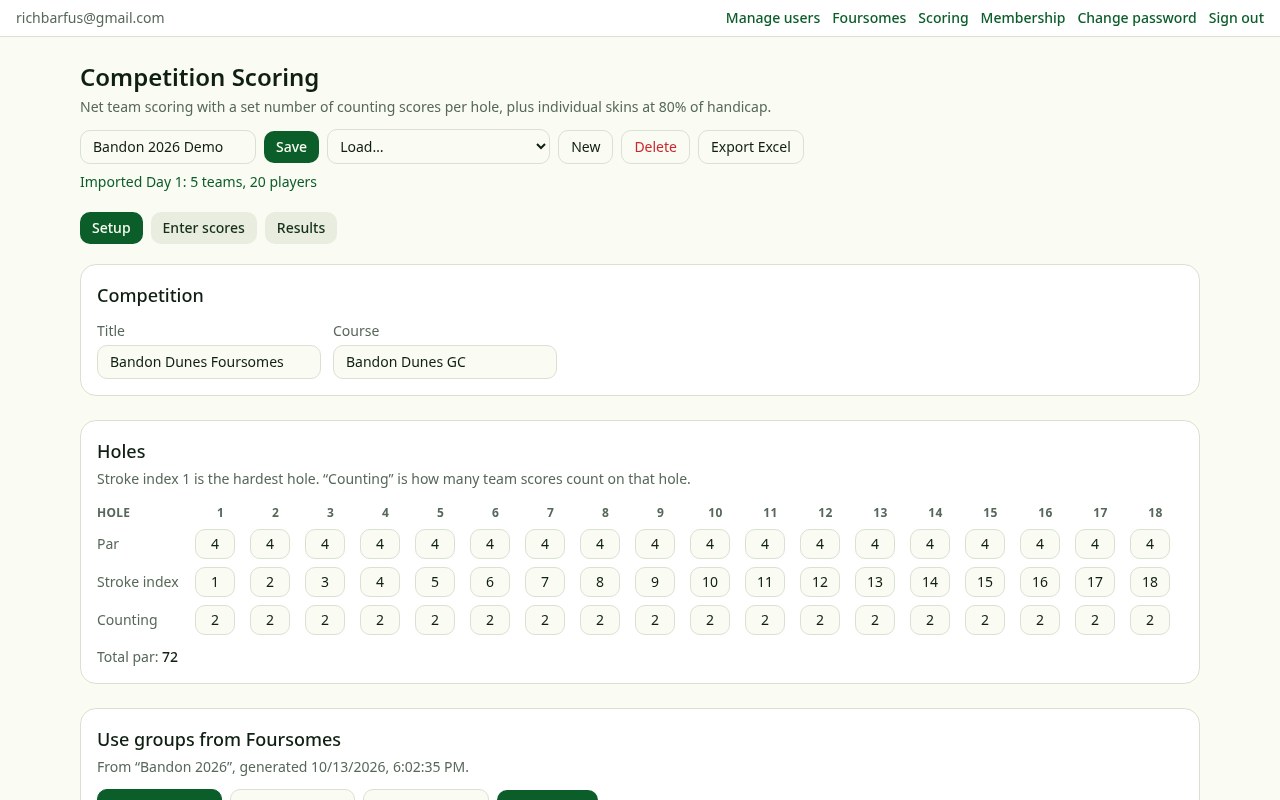
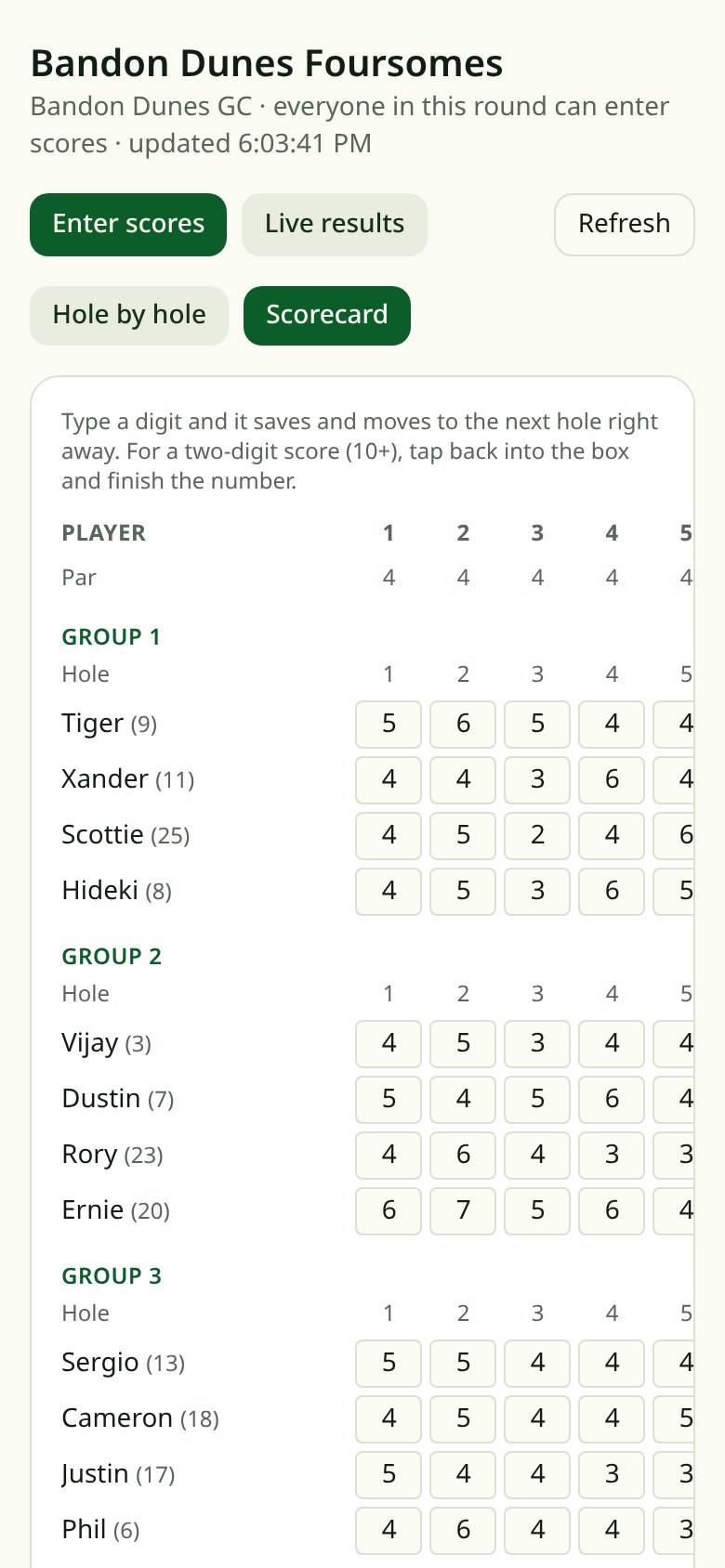
Step 4: Allow Players to Enter Their Own Scores
If players want to record their scores as they play, you can provide them with a scoring link.
- 1
Locate the link provided for player scoring.
- 2
Copy the link.
- 3
Paste it into a text message, email, or other message to send to the players.
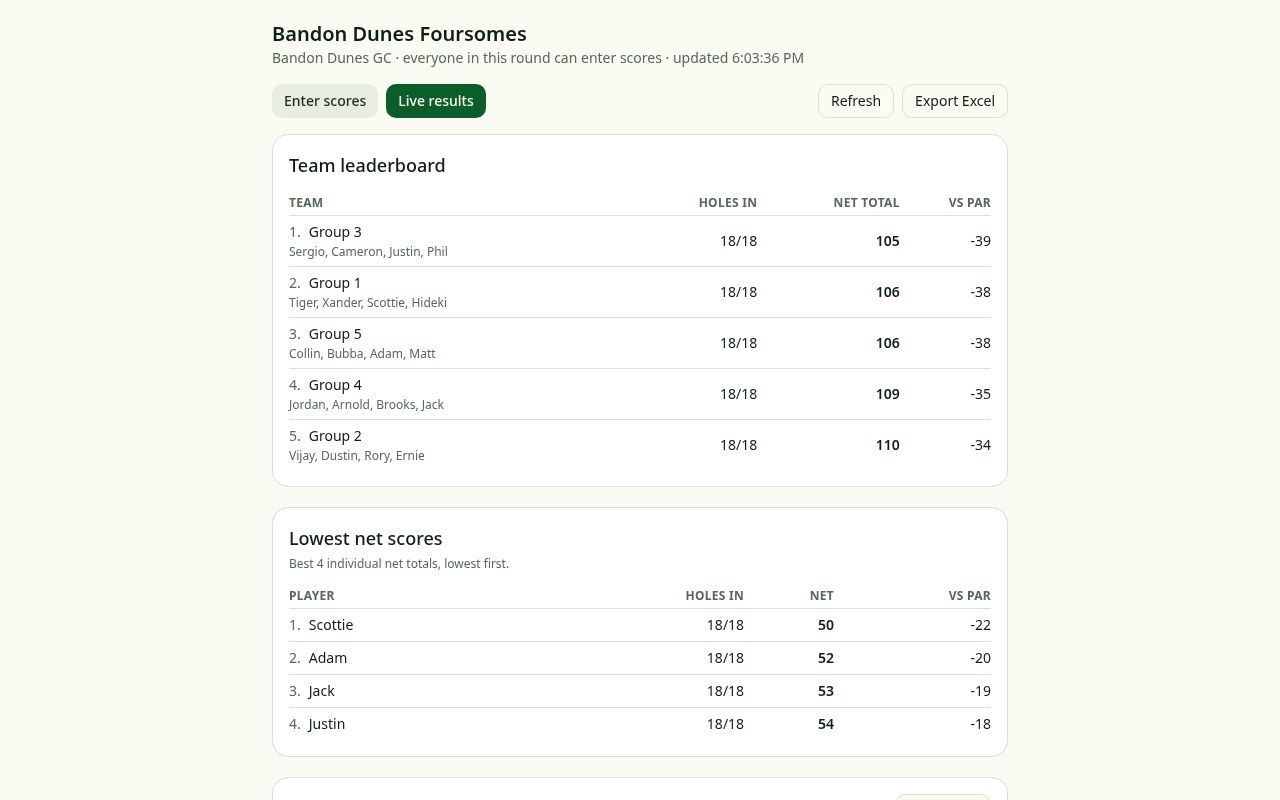
Players who use the link can enter their scores during the round and follow the progress of the game as it proceeds.
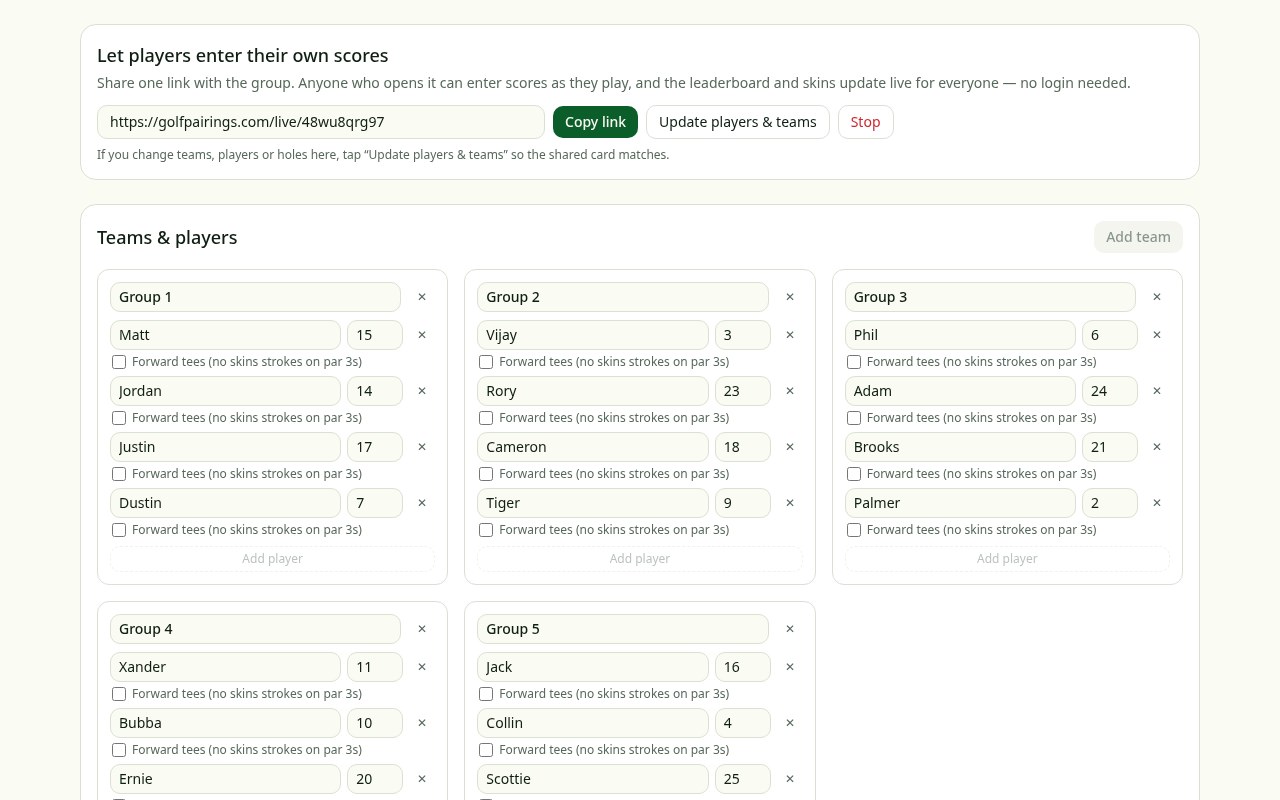
Entering Scores
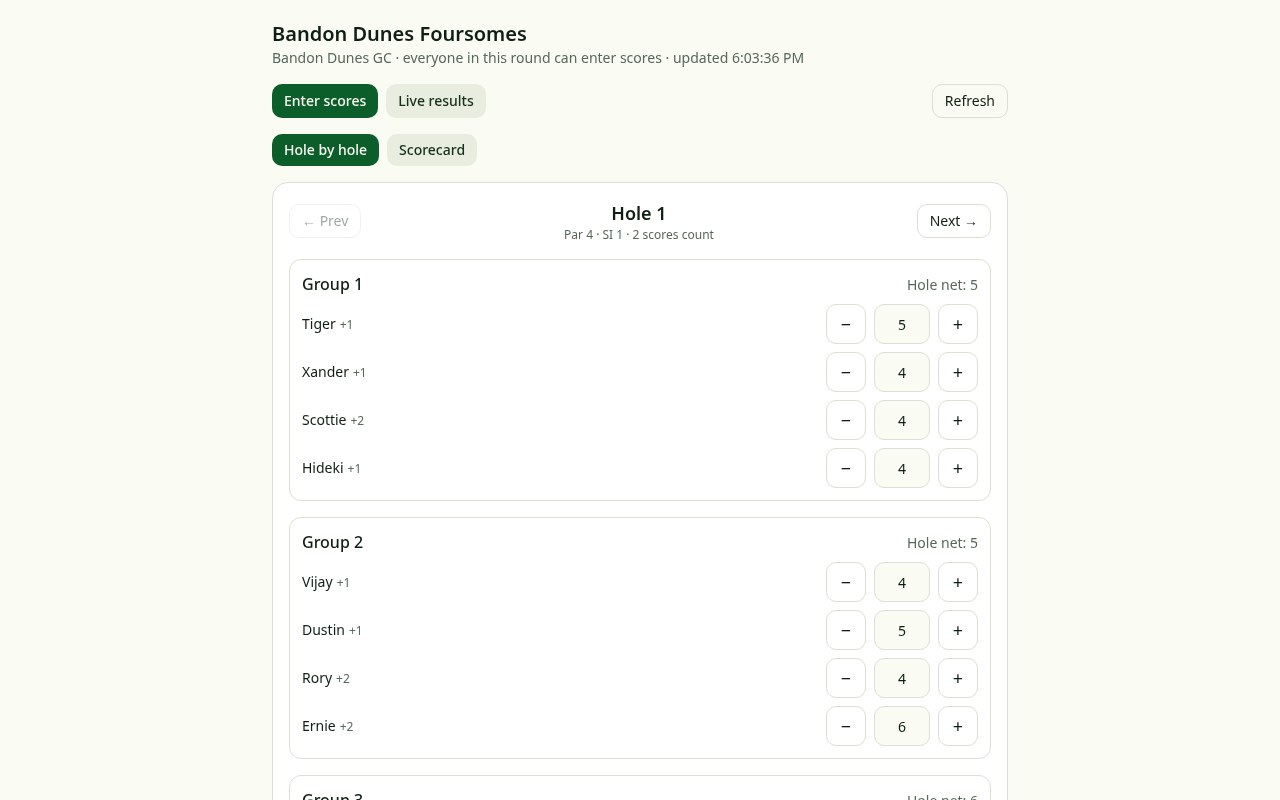
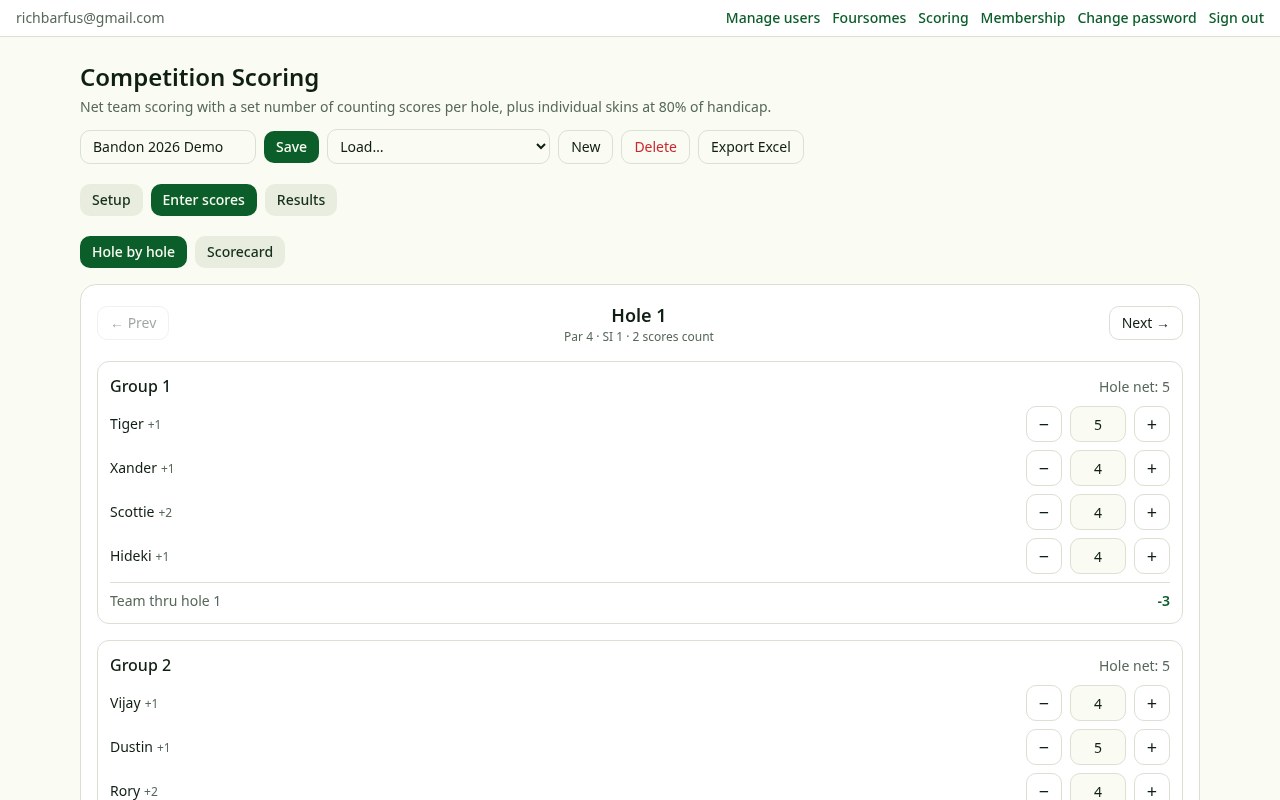
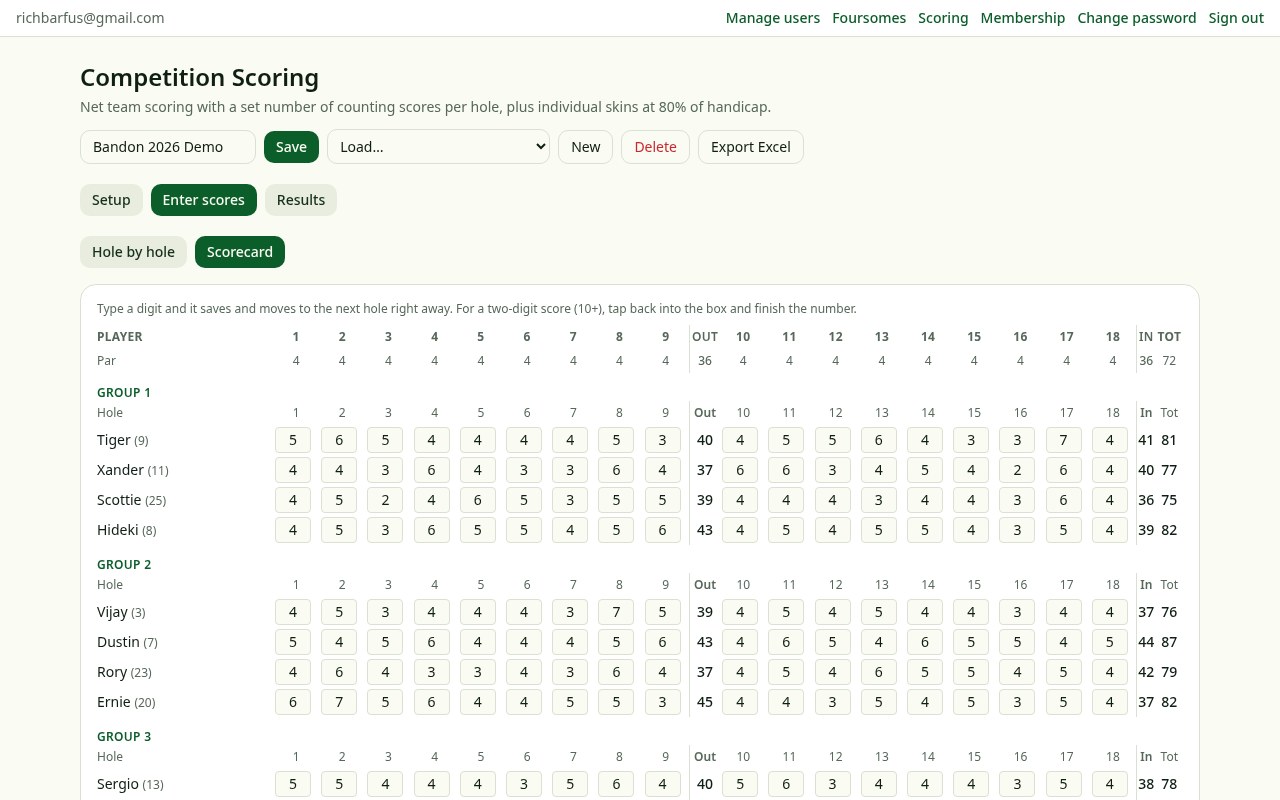
GolfPairings.com provides two methods for entering scores: Hole by Hole and Scorecard.
Option A: Hole by Hole
Use this method when players are entering scores as they play. Scores can be entered hole by hole, making it convenient to follow the progress of the game throughout the round.
Option B: Scorecard
Use this method when scores are being entered after the round has been completed. Entering the scores from a completed scorecard is generally the easier approach when all the scores are available at once.
Choose the method that best fits your situation.
Understanding the Scoring Results
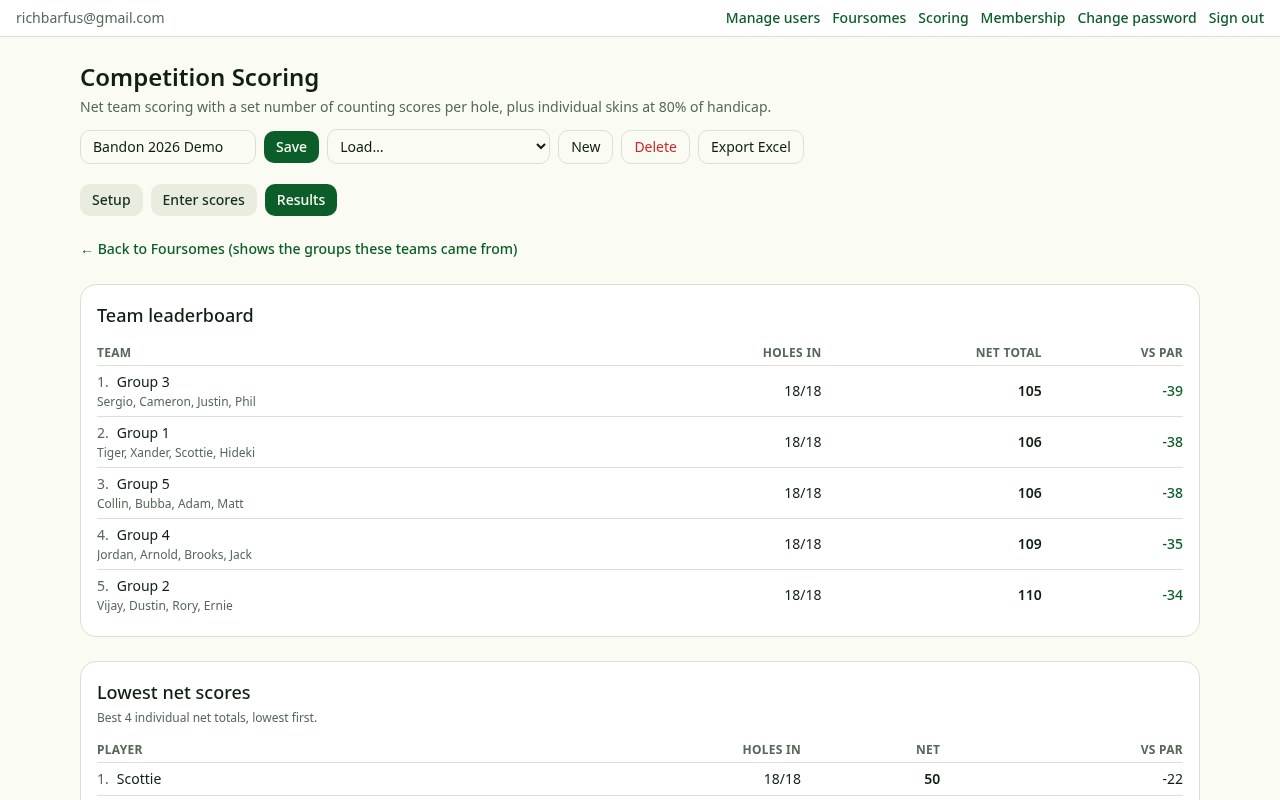
Once the scores have been entered, GolfPairings.com calculates and displays the results according to the game rules defined in Setup.
1. Winning Teams
The application calculates and displays the winning team or teams based on the scoring format you selected.
2. Top Four Low Net Scores
The application calculates and displays the four lowest net scores. These results allow you to recognize the top individual net performances in addition to the team results.
3. Skins by Hole and by Player
GolfPairings.com calculates skins by hole and by player. The skins calculations use the specified percentage of each player's handicap. The application also calculates the amount paid per player based on the skins pot, with the pot rounded down to the nearest $5.
Special Rules for Players Using the Forward Tees
You have the option to withhold skins strokes from players who play from the forward tees. If you use this rule, identify those players on the Setup page when loading the teams. The application will then apply the appropriate skins-stroke treatment according to the selected rules.
Quick Reference
| Task | Where to Go | What to Do |
|---|---|---|
| Create an account | Login page | Select Create an Account |
| Enter golfers and handicaps | Foursomes | Create a roster and enter the players |
| Generate groups | Foursomes | Choose Balanced by Handicap or Random |
| Save a grouping version | Foursomes | Copy and save the version number |
| Set up the course and game | Scoring → Setup | Enter hole information and counting rules |
| Load the day's groups | Scoring → Setup | Select the day and press Load Teams |
| Enter scores | Scoring | Choose Hole by Hole or Scorecard |
| View team and individual results | Scoring Results | Review winners and low net scores |
| Calculate skins | Scoring Results | Review skins by hole, player, and payout |
Final Note
For the smoothest experience, create your roster and generate your groups before setting up the scoring for the round. Once the teams are loaded, players can enter scores during play or you can enter them after the round using the scorecard method.
GolfPairings.com brings group organization, game setup, scorekeeping, and results together in one application, helping you spend less time managing the outing and more time enjoying the golf.
Ready to set up your outing?
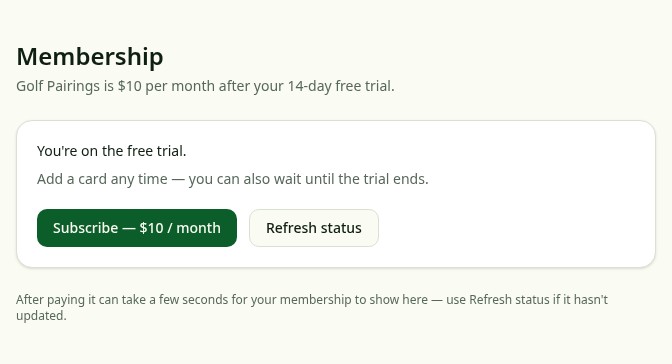
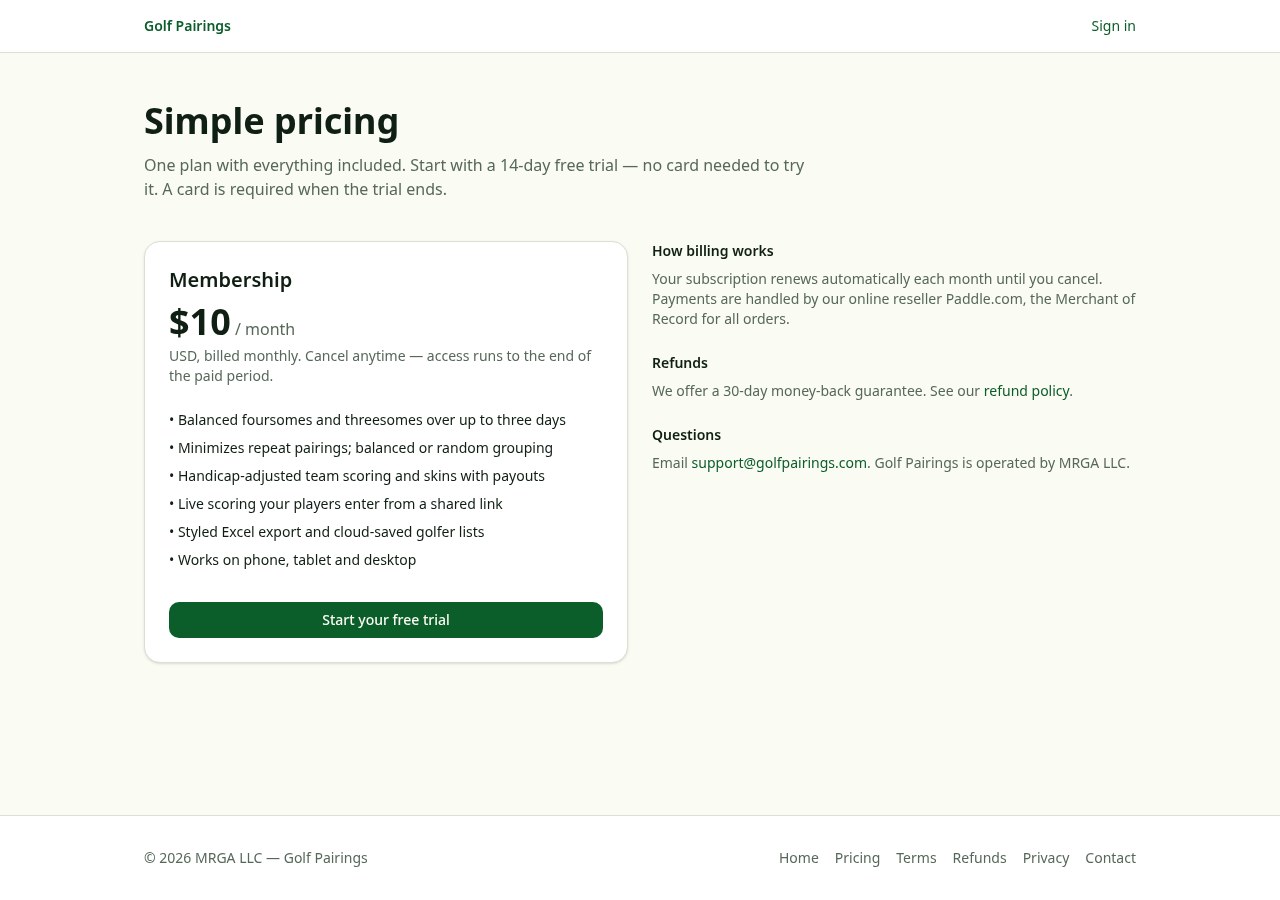
Start a 14-day free trial and have your first weekend built in a few minutes. Questions before you commit? Email support@golfpairings.com and MRGA LLC will answer.